
Find and Do
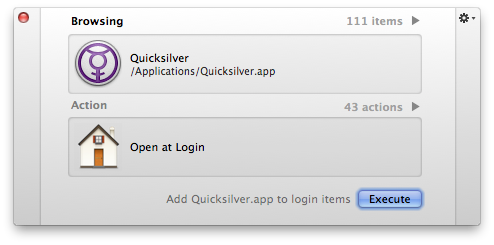
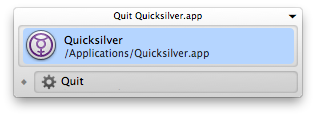
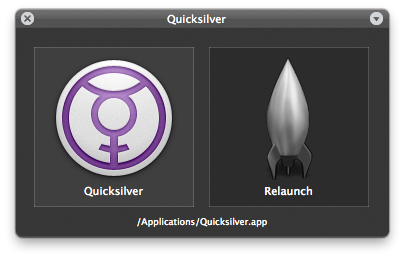
Quicksilver gives you quick access to all your important things. With only a few keystrokes, you can get to your applications, files, contacts, bookmarks, music, etc. Don't get distracted though; although Quicksilver finds and launches things quickly and extremely well, it's more about doing, not finding.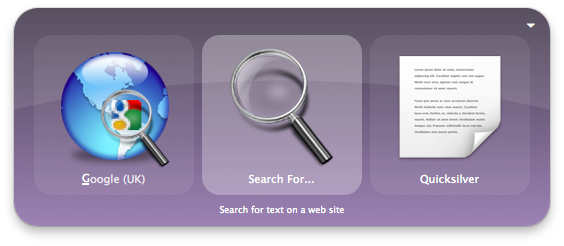
Launching is a gateway drug
Saying that Quicksilver is an application launcher is like saying a car is a cup holder. You can do almost anything with Quicksilver. Quicksilver's art is in learning what you like doing, and turning your chores into two-second thoughts. By knowing your habits, Quicksilver blurs the line between thinking about something and simply getting it done.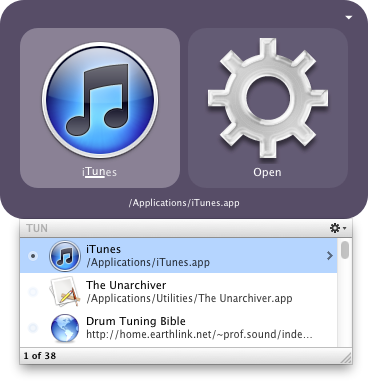
Type it like you think it
Using Spotlight or a similar app to find the contact 'John Smith' requires you to search for say "john". What if you want to just type "js"? Quicksilver lets you abbreviate using letters from anywhere in the name, and that means anywhere. Use "ps" to find Photoshop or "tun" to find iTunes.Use abbreviations that make sense to you.
Do it like you think it
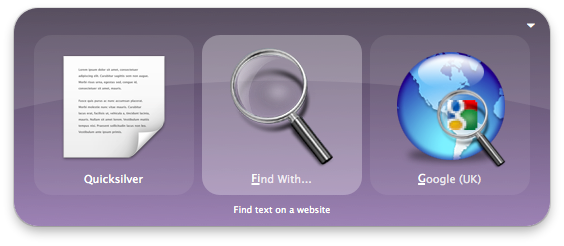
Quicksilver lets you do things how you think of them, adapting to however you think.You can Google search for 'some text', or find 'some text' with Google search.
You can select a contact and e-mail them a file, or you can select a file and e-mail it to a contact.
No thinking. No planning. No adjusting. Just doing.
Stay where you are
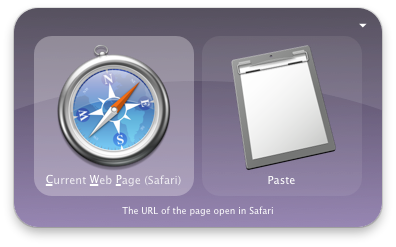
With Quicksilver, you never need to stop what you're doing to complete simple tasks. Move the file you just downloaded to your Documents folder without leaving your browser. Add something to your To Do List as soon as you think of it. Quicksilver allows you to process your thoughts instantly, and lets you get right back to what you want to be doing.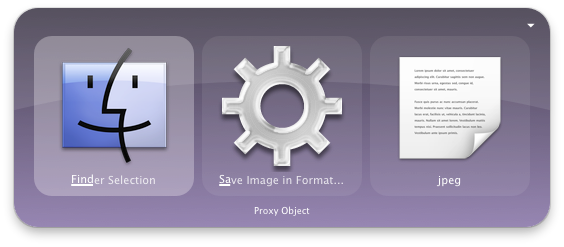
Grab and go
Select files or text and act upon them immediately. Quicksilver can grab the current selection from almost any application. Grab selected text to search for it on the web or append it to a file. Grab files and delete them, move them or send them. Grab pictures to resize them or change their format (above), the options are limitless.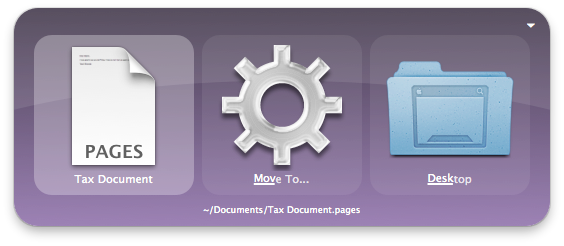
Keep Finder at arm's length
Quicksilver allows you to do all sorts of things with files: move, copy, rename, delete, whilst also letting you navigate your entire file system. Just add a few important top-level folders to the catalog and you can browse through your folders from there.
Still not fast enough?
If you find yourself doing something frequently, you can speed up the task even further by assigning a "trigger" to it. Triggers give you the power to assign regular tasks to keyboard shortcuts or mouse movements; you don't even need to activate Quicksilver.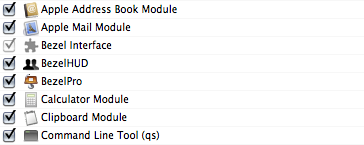
Extend Quicksilver & do more
There are many plug-ins that extend Quicksilver's functionality even further. Interact with your installed applications; Mail, 1Password, Microsoft Office and more. Access information from web-based services. Access your browser's bookmarks and history.Check out the 'Plugins' section within the Quicksilver preferences to see the all the entire plugins list; containing over 100 plugins.